
Apple launched HomeKit in September 2014 alongside iOS 8. Since then, it has evolved into what we now know as Apple Home in 2026, with better automation, broader accessory support, and a clearer path forward thanks to Matter and modern networking like Thread.
Getting started is straightforward. It just takes a bit of setup up front. In this guide, I’ll cover what Apple Home is, what you can do with it, what you need, how to organise your home properly, plus the standards and wireless protocols that make the whole thing reliable.
What is Apple Home?
Apple Home (formerly HomeKit) is Apple’s smart home platform. It connects compatible accessories, keeps your smart home data encrypted end to end, and lets you control everything securely from the Home app.
You can control devices using the Home app across iPhone, iPad, and Mac, and you can use Siri for voice control. For more advanced setups, Apple Home supports Scenes and Automations, so your home can respond to time, location, sensors, and device states.
What Can you Do With Apple Home?
Apple Home is a platform that links smart home products together. It can add new capabilities to devices like lights, locks, cameras, thermostats, plugs. You can control smart home products using apps on your iPhone, iPad, or Mac, or Siri voice commands.
For more advance use, you can use Apple Home automations and scenes to control multiple Apple Home enabled accessories. This gives you a level of control over devices without having to control them directly.
You can, for example, create a “Goodnight” scene that makes sure the doors are locked, blinds closed, turns off the lights and turns on the security system With automation, you can also set individual Apple Home devices to come on or off at specific times. You can also use other devices to trigger another device.
Matter in Apple Home
Matter is the modern smart home standard designed to make devices work across platforms, including Apple Home, Google Home, Alexa, and SmartThings. In Apple Home terms, Matter is the “common language” that helps accessories join your home without needing platform specific certification.
In 2026, the big win with Matter is confidence. If a device supports Matter, you know it can be added to Apple Home directly, and the essentials should work reliably.
A few key points.
Matter is not a wireless signal. It still needs a network to run on, which is where Thread, Wi Fi, and Ethernet come in.
Matter support varies by device type. You’ll usually get the core features inside Apple Home, but some advanced features can remain in the manufacturer’s own app.
Updates still matter. Even with Matter, firmware updates are essential for stability and compatibility improvements.
How devices connect in Apple Home
When you’re buying smart home gear, the logos and standards can look like noise, but they matter because they shape reliability, speed, and battery life.
Wi Fi
Wi Fi is common because it’s easy. Many cameras, doorbells, plugs, and appliances use Wi Fi because it doesn’t require a dedicated bridge.
The trade off is Wi Fi can put more strain on your router, and battery powered Wi Fi devices often need to sleep more aggressively to conserve power.
Thread
Thread is a low power mesh network designed for smart home devices. Instead of every accessory connecting directly to Wi Fi, Thread devices form a mesh where devices relay messages for each other.
Thread is a major reliability upgrade for lights, locks, and sensors, and it’s also a key part of the Matter story, because many of the best Matter devices run as Matter over Thread.
Bluetooth
Bluetooth still appears in Apple Home, particularly in older HomeKit accessories and certain simple devices. It can be solid at short range, but it does not scale as cleanly across larger homes and range can vary depending on walls and layout. Bluetooth is often used during the pairing process when setting up a device.
Zigbee
Zigbee does not connect to Apple Home directly, but it’s common in Apple Home households because many lighting and sensor ecosystems use it through a bridge.
A typical example is Philips Hue. Bulbs use Zigbee to talk to the Hue Bridge, and the bridge then exposes those devices to Apple Home.
Ethernet
Ethernet is the quiet hero for reliability. If you can wire your Apple TV 4K, smart home bridges, or cameras, you reduce wireless congestion and usually improve response times.
Home hubs in Apple Home
A Home hub is the always on device that keeps Apple Home running when your iPhone is not home. It enables remote control, keeps automations running reliably, supports HomeKit Secure Video, and can improve reliability for Thread accessories.
In 2026, the most common hub options are.
HomePod or HomePod mini
Great all round hubs, with strong Thread support and Siri built in.
Apple TV 4K
Often the most reliable hub, especially if connected with Ethernet.
If you want remote access, dependable automations, and a stable Apple Home setup, you want a hub. One is enough for most homes, and adding a second can help coverage and resilience.
What do you need to run Apple Home?
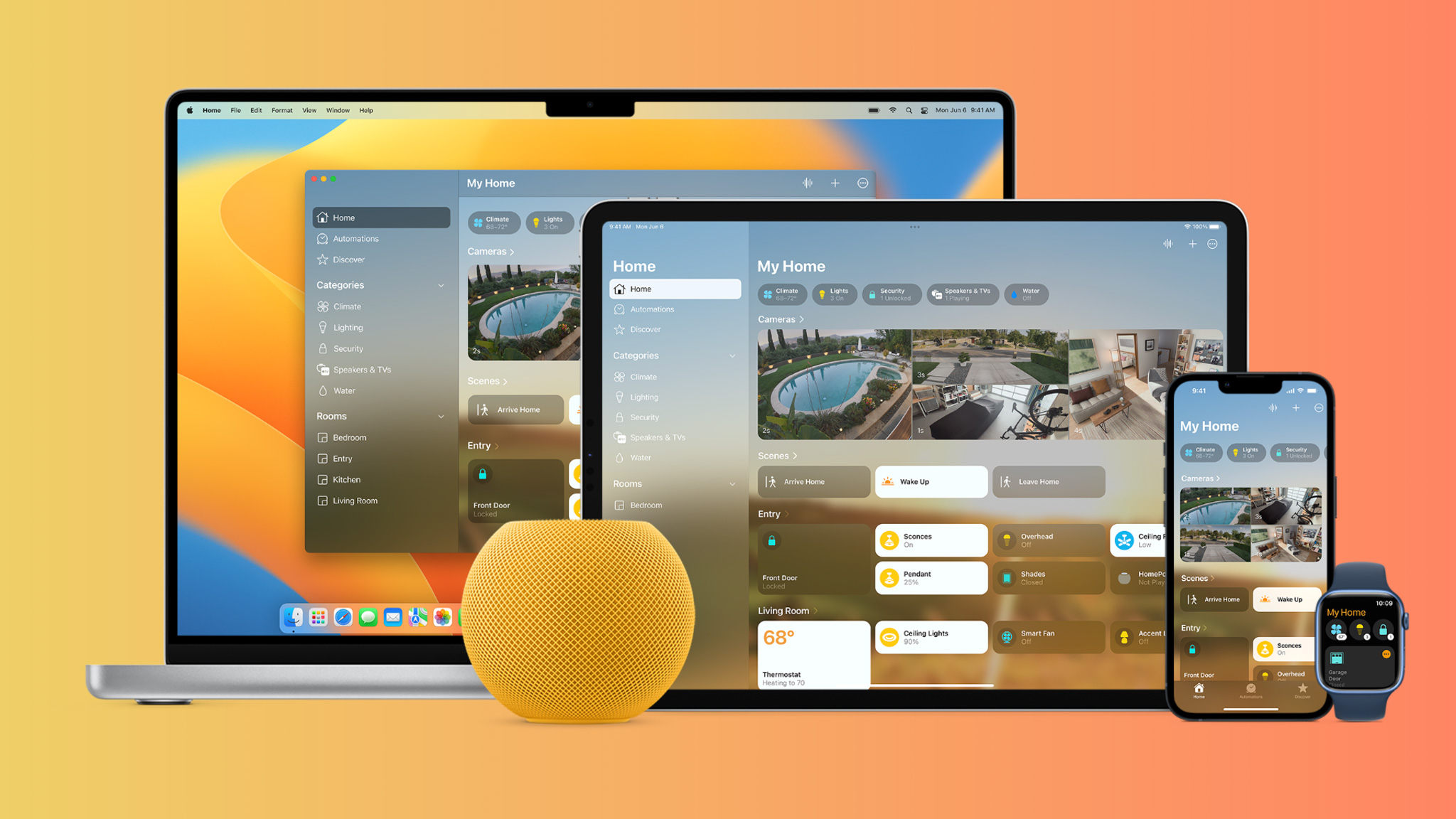
To build a reliable Apple Home setup, you’ll want the following.
- iPhone or iPad running a current version of iOS or iPadOS.
- At least one Apple Home compatible accessory.
- The manufacturer’s companion app for updates and advanced settings.
- A home Wi Fi network with internet access for remote control.
- A Home hub, typically HomePod or Apple TV 4K, for remote access and automations.
Setting up a Apple Home smart home
Once you’ve got devices, the key is organising them properly. Apple Home is built around a simple hierarchy.
- A Home is the top level container. Most people only have one, but you can create multiple homes if you need to, such as a main home and a holiday property.
- Rooms sit inside your home and represent physical spaces such as Living Room, Hallway, Bedroom, Bathroom, Garage, or Garden. Rooms are not just for organisation. They directly impact voice control, scenes, and automations.
- Accessories are your devices. Smart plugs, lights, sensors, speakers, locks, cameras, and more all live inside rooms.
- Zones are optional, but useful later. They group rooms into larger areas like Upstairs, Downstairs, or Outside, which makes it easier to control groups of devices at once.
- Scenes are predefined states for multiple accessories. They let you change the mood of your home with a single tap or a single voice command, like turning off multiple lights at bedtime.
- Automations are what make a home feel smart. Automations run automatically when something happens, such as a time of day, a sensor detecting motion, your location changing, or a device state changing.
How to Pair Apple Home Accessories
Most Apple Home compatible accessories include a setup code, often a QR code. To add one, open the Home app or the manufacturer’s app, scan the code with your iPhone or iPad, then follow the prompts to name the device and assign it to a room.
Accessory Names
Naming is one of the simplest ways to make Apple Home feel smarter.
Rename devices to something you will actually say, like “Hall Light” or “Front Door Lock”. Keep names unique, otherwise Siri and automations can get confused.
Rooms and Zones
I would also recommend assigning a room to each Apple Home device. This then allows for room-based voice commands like “Turn off the lights in the bedroom.” A Siri command that incorporates a room will control all the devices assigned to that room. Like device Names, Room names need to be unique.
A Room can be any part of your home, ranging from a bedroom or bathroom to a dining room or office. Rooms can also be outside in Apple Home such as a garage or a garden. If you are using a lot of Apple Home supported devices, then I would recommend creating rooms and adding the devices to the relevant room for each control. It also makes it easy when creating scenes and automation triggers.
Zones are a collection of multiple Rooms that represent a larger area of your home. For instance I have upstairs, and downstairs zones create in my home. Within that zone I all the rooms within Apple Home assigned. Then when I go upstairs to bed, I ask Siri “Turn off the downstairs lights.”
Scenes
Scenes let you control multiple accessories with one tap or one Siri command.
A “Relax” scene might set lights to warm tones and close blinds. A “TV” scene might dim lights and turn on a lamp. A “Goodnight” scene might turn off lights, lock doors, and set security.
Automations
Apple Home takes home automation one step further with automation control. This feature lets you connect and control combinations of accessories at once. For example, when you have a trigger set to “arriving home,” which can automatically turn on the lights for the drive, set the thermostat and unlock the front door. In reverse of that, the scene “leaving home” can be set to turn off all of your lights, lock your doors and turn the temperature on the thermostat.
You can set automations for specific times or for specific events. For instance, you may want all the lights in the house to start turning on at sunset. You can also set these triggers to activate based on the preference of people in the home or just you. So, for example, if you have the heating to turn off at 10 am, but only if no-one is in the house.
You also use automations to trigger other devices with another device. So for instance, with a presence sensor like the Meross Presence sensor. A trigger can be set up to turn on the bathroom lights whenever motion is detected.
Group Apple Home Accessories
Sometimes, certain accessories are easier to control when paired together. For instance, if you have a ceiling light or lamp that requires multiple bulbs. So giving you an example, I have 6 down lights in my bathroom powered by 6 Philips Hue G10 bulbs. Each of these Philips Hue G10 bulbs I have named them “bathroom 1”, “bathroom 2” and so on.
So when I want to turn the lights on or off, I have to do it to both bulbs individually. but using this method you can control the smart lights with one tap of a button.
Apple Home icons
The Home app gives all your Apple Home accessories a default icon whenever you add them to Apple Home. But you can change the icons to identify smart accessories. You can change icons for a number of devices like lights, power sockets and blinds.
Using Siri to control Apple Home
Siri lets you control your Apple Home using natural, conversational voice commands like “turn on the living room lights” or “set the thermostat to 19 degrees”. This kind of voice control is most useful when your hands are full, when you are moving around the house, or when you want to activate a scene quickly without opening the Apple Home app or reaching for your phone.
Beyond simple commands, Siri can also help you build automations directly into Apple Home. Instead of manually setting schedules in the app, you can just say something like “turn on the dining room lights every day at 6pm”. Siri understands the intent, creates the automation for you, and saves it in the Home app where you can review, edit, or expand it later with additional conditions or devices.
HomeKit Secure Video
HomeKit Secure Video is Apple’s privacy focused camera platform built into Apple Home. It brings camera streaming, recording, and activity notifications directly into the Home app.
Video is analysed locally by your Home hub for motion and activity detection, then encrypted end to end. After an event is recorded, the clip is stored in iCloud in a way that prevents Apple and the camera manufacturer from viewing it.
APPLE HOME KEY IS
Home Key is a virtual key stored in the Wallet app on your iPhone and Apple Watch. It uses NFC in the same way as Apple Pay, allowing you to unlock your door by simply holding your device near the lock.
To use Home Key, you need an iPhone XS or newer, or an Apple Watch Series 4 or newer, as these devices support NFC. Home Key works locally at the door and does not require an internet connection to unlock.
Home Key supports three different unlock modes, giving you control over the balance between convenience and security.
Express Mode allows you to unlock the door without unlocking your iPhone or authenticating with Face ID or Touch ID. You simply hold your iPhone or Apple Watch near the lock and it unlocks instantly. This works in the same way as Express Transit and is the fastest way to enter your home.
If you prefer an extra layer of security, you can require authentication. In this mode, you hold your device near the lock and then authenticate using Face ID, Touch ID, or your passcode before the door unlocks.
Home Key Ultra Wide band
The third is some newer Apple Home smart locks also support Ultra Wideband, often referred to as UWB unlocking. While Home Key uses NFC and requires you to tap your iPhone or Apple Watch on the lock, UWB allows the lock to detect your device at short range and unlock automatically as you approach.
Ultra Wideband provides precise distance and direction awareness, meaning the lock can tell when you are actually standing at the door rather than just nearby. This enables hands free unlocking without needing to take your phone out of your pocket or raise your wrist.
Reviews of Apple Home accessories

Apple Home is only as good as the accessories you connect to it. The ecosystem covers everything from thermostats and lighting to cameras, alarms, sensors, blinds, and air quality monitors.
If you’re deciding what to buy next, the most useful review should tell you two things. How well the device performs in the manufacturer’s own app, and how well it behaves inside Apple Home day to day.
Below is a list of Apple Home accessory reviews to help you decide which ones are worth adding next.
Well thats a wrap, Don’t forget to subscribe for more smart home and Apple Home reviews and reviews. If you have a question or a comment, then leave it below. You can also follow us on X, Facebook, YouTube and Instagram.