The Apple Home how to guide series focuses on smart home accessories, practical setup tips, and everyday features inside Apple’s Home app. These guides are designed to help you get the most out of an Apple Home setup, whether you are just getting started or refining an existing system.
In this guide, we are looking at how to group smart accessories in the Home app. Grouping is especially useful for lights and fixtures that rely on multiple bulbs, allowing them to behave like a single device instead of several individual ones.
Why grouping accessories matters in Apple Home
Some accessories make far more sense when they are controlled together. Ceiling lights, spotlights, and multi bulb fixtures are the most common examples. Without grouping, each bulb appears as a separate device in the Home app, which quickly becomes messy and inconvenient.
For example, in my bathroom I have six downlights, each fitted with an individual smart bulb. If left ungrouped, each bulb needs to be controlled separately. By grouping them, the Home app treats them as one light, making control far simpler both in the app and with Siri.
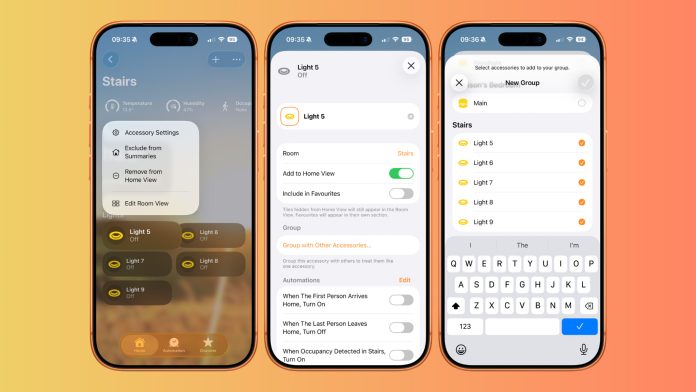
How to group accessories in the Home app

Start by opening the Home app on your iPhone or iPad.
- Navigate to the room that contains the accessories you want to group.
- Press and hold on one of the accessories you want to include in the group.
- Tap the settings icon to open the accessory settings screen.
- Scroll down to the Group section and select Group with Other Accessories.
- You will now see a list of compatible accessories within the same room.
- Select the accessories you want to include in the group, then give the group a clear and descriptive name. This name is what will appear in the Home app and what you will use with Siri.
- Once everything is selected and named, tap Done to save the group.
How grouped accessories behave
After grouping, the accessories act as a single device. Turning the group on or off affects all included accessories at once. For lights, brightness and colour changes apply across the entire group, keeping everything consistent.
Grouping does not replace other organisation tools in Apple Home. You can still use rooms, zones, and scenes alongside grouped accessories to build more advanced control. Grouping simply simplifies control at the device level.
Ungrouping accessories later
If you ever need to undo a group, press and hold on the grouped accessory in the Home app, open the settings, and choose the option to ungroup. Each accessory will then return to being controlled individually.
Grouping is a small feature, but it makes a big difference to day to day usability. For homes with lots of smart lights, it is one of the quickest ways to make Apple Home feel cleaner, faster, and easier to use.
For more Apple Home how to guides, make sure to subscribe. If you have questions or want to share how you organise accessories in your own setup, leave a comment and follow along on YouTube and social channels for future guides.





Hi,
I have a question. I used to be able to make scenes with dirrefent colors & brightness in my living room using my grouped lights ( 3 hue bulbs & 1 Nanoleaf ).
But now I’m not able, when I tap make a scene, then add the group, and press ⚙️ I used to be able to select brightness/ colors.
How do I do this now without ungrouping them.?
I dont think you can now