
The Apple Home guide series focuses on smart home accessories, practical setup tips, and everyday features inside Apple’s Home app and the HomeKit framework. In this guide, we are looking at how to create scenes in the Home app and why they are one of the most useful tools in an Apple Home setup.
Why Create a Scene in Apple Home
Scenes let you control multiple Apple Home accessories at the same time with a single tap or a simple Siri command. Instead of turning devices on one by one, a scene applies a predefined state across lights, plugs, blinds, and more. A common example is a Movie Night scene that dims the lights and closes the blinds. In my own setup, I use a scene to instantly set the lighting in my YouTube studio.
How to create a scene in the Home app
To get started, open the Home app on your iPhone or iPad.
- Tap the plus icon in the top right corner and select Add Scene.
- Apple Home gives you some options, but in this case we are going to create a custom scene

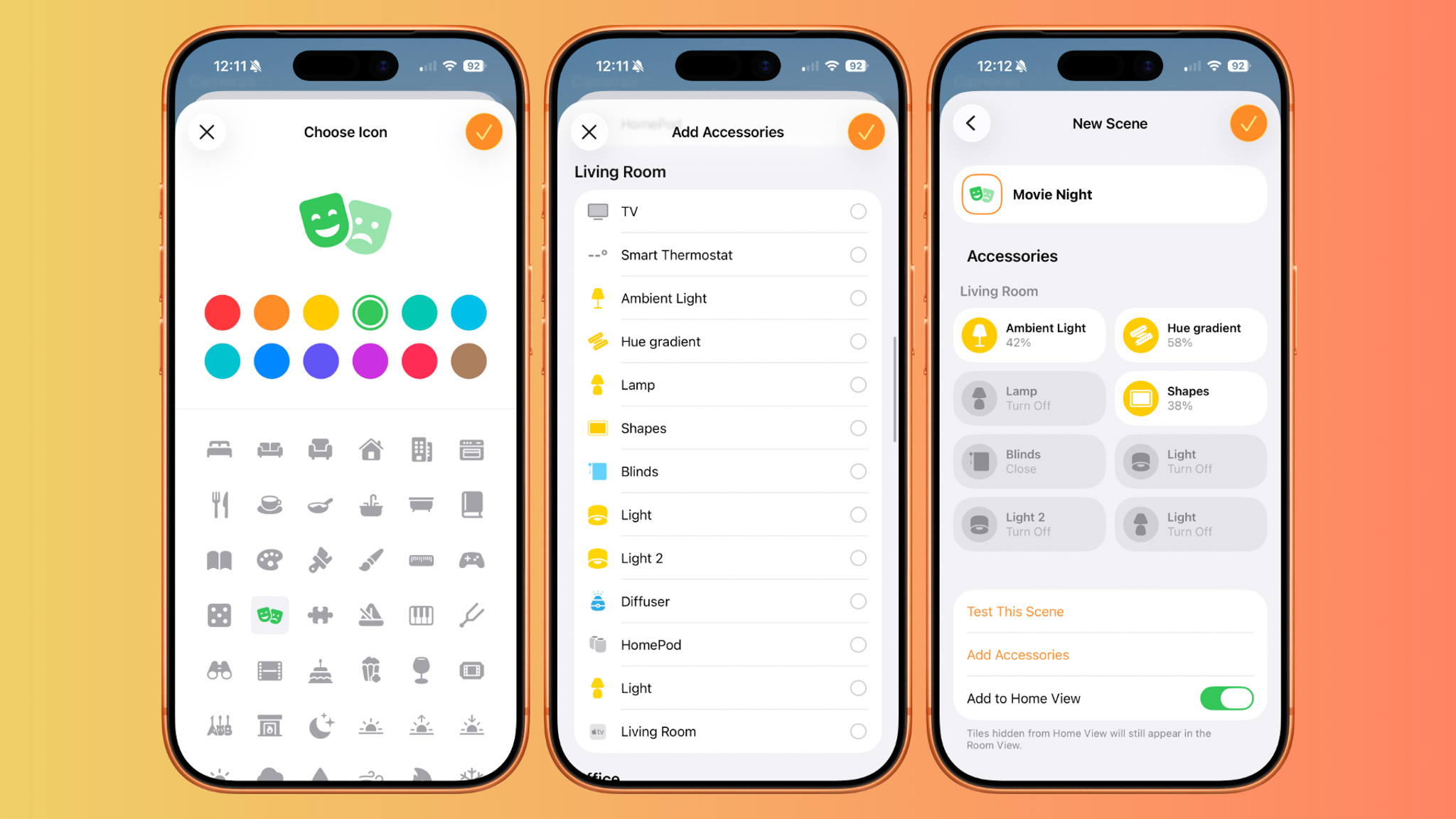
- You will be prompted to give your scene a name. Choose something clear and descriptive, as this is what you will also say when using Siri. You can optionally change the scene icon by tapping the icon next to the name, which makes it easier to recognise at a glance in the Home app.
- Next, tap Add Accessories and select the devices you want included in the scene. This can be lights, plugs, blinds, or any other compatible Apple Home accessory. Once selected, tap Done.
- After adding accessories, you can fine tune how each one behaves when the scene runs. Long press on an accessory within the scene to adjust settings such as brightness, colour, or position. This is where you define the exact state you want, for example dimmed warm lights or fully closed blinds.
- When you are happy with the setup, you can use the Test This Scene button to preview how it behaves before saving it. You can also return to Add Accessories if you want to include more devices later.
- Finally, you have the option to add the scene to your Favourites so it appears prominently on the main Home tab. Tap Done to save the scene.

What to do next
Now that your scene is set up, it can be activated manually, added to favourites, or triggered with Siri. If you want to take things further, scenes can also be used as part of automations.
Unlike scenes, automations run without any manual interaction. They can trigger based on time of day, motion detection, people arriving or leaving, and other conditions. This allows your Apple Home to react automatically instead of waiting for input.
This guide will show you how to set up automations in Apple Home
If you have questions or want to share how you use scenes in your own setup, drop a comment below.