Automations in Apple Home, Unlike scenes, which require manual activation or a Siri command, automations run in the background without any interaction. They allow your Apple Home to respond automatically based on time, location, or activity. This is where a smart home starts to feel genuinely smart, rather than just remotely controlled.
What automations do in Apple Home
Automations let you trigger accessories or scenes when specific conditions are met. This could be when you leave the house, when someone arrives home, at a certain time of day, or when a sensor detects motion. For example, you might have lights turn on automatically in the evening, blinds lower at night, or heating adjust when everyone leaves the house.
How to create an automation in the Home app

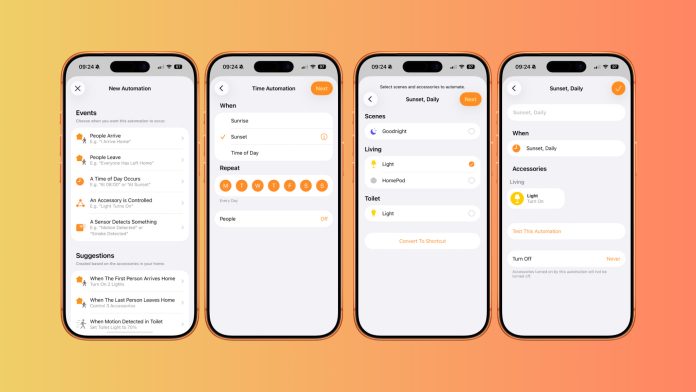
Start by opening the Home app on your iPhone or iPad and navigating to the Automation tab.
- Tap the plus icon in the top right corner to begin creating a new automation.
- You will be presented with several trigger options. These include people arriving, people leaving, a specific time of day, an accessory being controlled, or a sensor detecting activity. For this example, select A Time of Day Occurs.
- Next, choose the time you want the automation to run using the time selector. You can then specify which days it should apply to, such as every day or only weekdays. There is also an option to refine behaviour based on whether someone is home or away, giving you more control over how the automation behaves.
- Once the timing is set, tap Next and choose which accessories or scenes you want the automation to control. This allows you to either activate individual devices or trigger an entire scene with a single automation.
- After selecting your accessories, you can fine tune their behaviour. Long press on any accessory to adjust its state, such as lowering blinds, dimming lights, or changing colours. This ensures everything behaves exactly as you want when the automation runs.
- When you are happy with the setup, tap Done to save the automation.
What to do next
You now have your first automation running inside Apple Home. From here, you can experiment with other automation triggers such as motion sensors, contact sensors, or location based actions.
Automations can also be combined with scenes to build more advanced behaviour, like lighting that adjusts automatically throughout the day or outdoor lights that activate only after sunset. Once you start using them regularly, automations often become the most relied upon part of an Apple Home setup.
For more Apple Home how to guides, make sure to subscribe. If you have questions or want to share how you use automations in your own home, leave a comment below and follow along on YouTube and social channels for future guides.







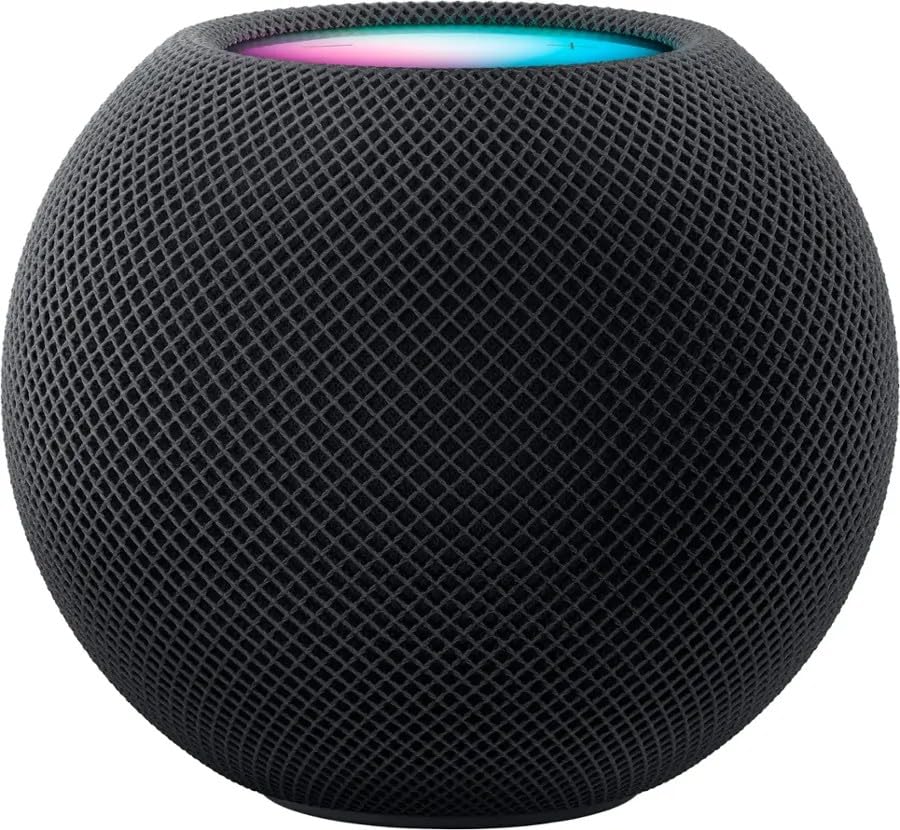
I would like to create an automation that runs on my HomePod at a specific time of day and on specific days of the week. Would like for the HomePod to speak text that I can provide. I am unsure how to go about making this happen.
Backstory: Spent multiple years as a Dependant of an active duty service member and also on active duty myself and would like for HomePod to announce Revellie each morning when I have to wake up. If I can get it to work I would put it on my HomePod.
[…] you have started out using HomeKit and the Home App, but you now want to step things up with automations, access you’re smart devices outside of your home. Then you need a HomeKit to take advantage of […]
[…] You can follow this article for a handy how to set up automations within the Home App for more information. […]