
With the launch of Matter last month and manufacturers like Eve releasing firmware updates to support it. We now have a new bunch of setup codes to keep safe and HomePass can help with that.
HomePass created by developer Aaron Pearce is an iOS app to back up all the HomeKit codes that come with your smart devices. These codes can be found on the packaging, or printed on the accessory itself. But devices that are upgraded to Matter, in most cases these codes are generated via the app.
Currently, HomePass can only save codes that are 8 digits and Matter codes are 11. But we can overcome this by using the custom fields option within HomePass. So if you are saving a new device for the first time or adding to a device added in the past. You can easily add the Matter code to a custom field.
To create a custom field in HomePass
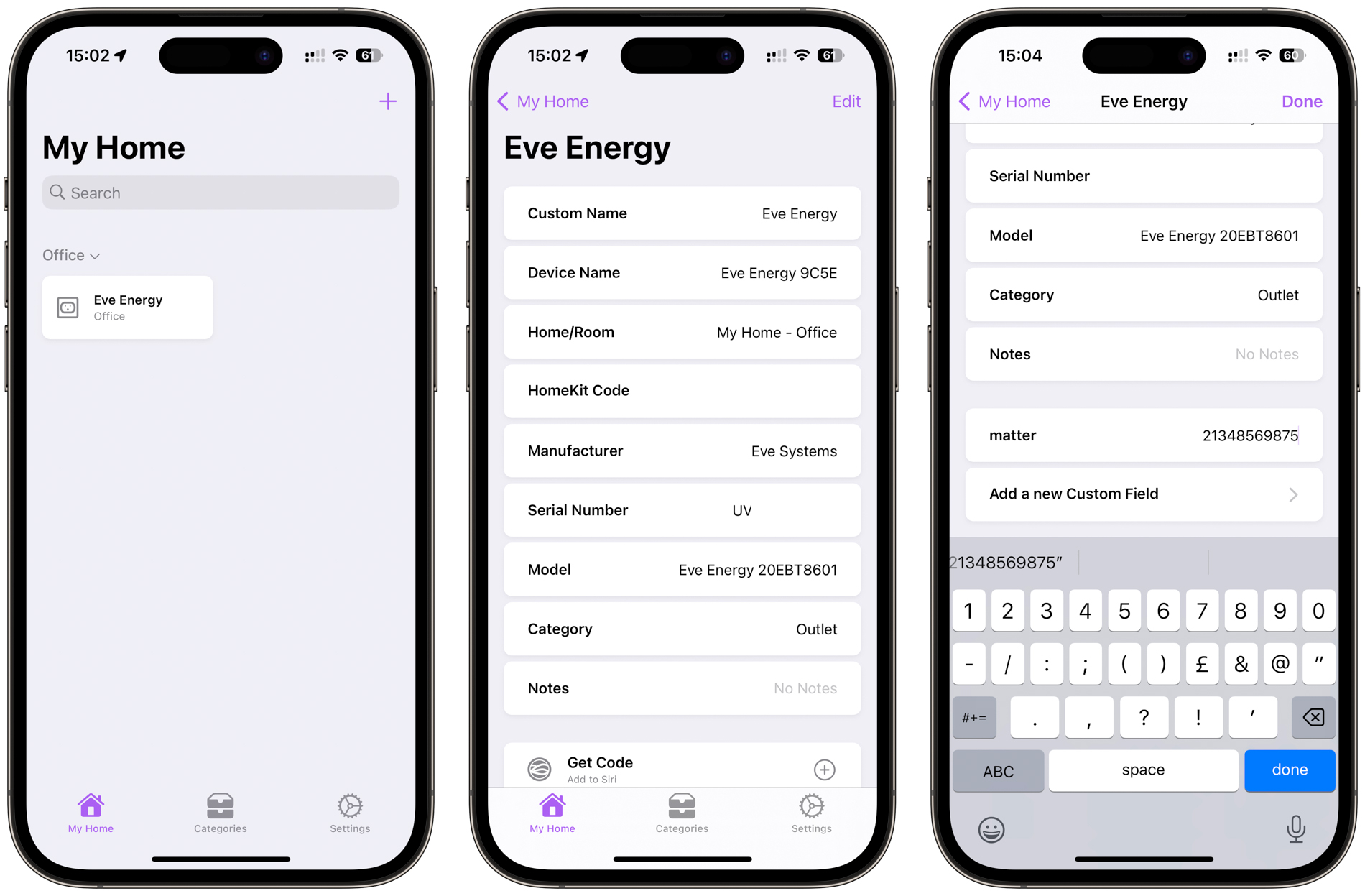
- Open HomePass and click on the accessory you want to add the Matter code
- Tap edit
- Scroll down and tap “Add a new Custom Field”
- Tap +
- Then “add a custom field name” – Call it Matter
- Once added, add the Matter code to the custom field
- Tap Done
You can download HomePass from the AppStore for $2.99/£2.99 and the developer is working on a method to add Matter codes like you can do with HomeKit.
Don’t forget to subscribe for to be notified of the latest HomeKit News, reviews and tutorials. If you have a question or a comment, then leave it below. You can also follow us on Twitter, Facebook, YouTube and Instagram.