

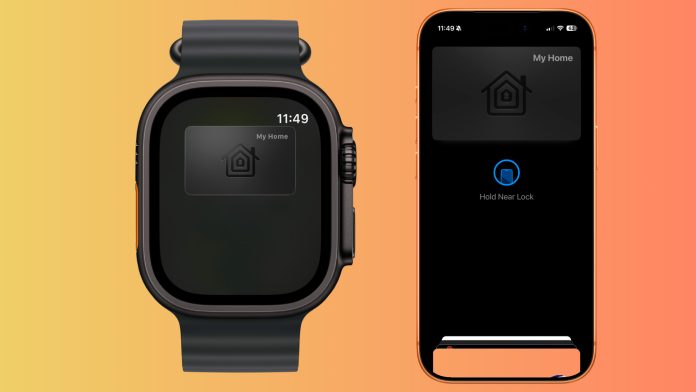
Apple first introduced Home Key at the 2021 Worldwide Developers Conference, launching it alongside iOS 15 as part of Apple Home. Since then, support from smart lock manufacturers has gradually expanded, with far more options now available across North America, Europe, and Asia. The first widely available Home Key lock was the Schlage Encode Plus in North America and the Aqara A100, but the ecosystem has grown considerably with brands including Aqara, Nuki, Yale, Level, and Philips now offering compatible models.
Apple Home Key is evolving beyond simple tap to unlock smart locks. While the feature originally launched using NFC, the next generation of Apple Home smart locks are now beginning to support Ultra Wideband, often shortened to UWB, enabling true hands free unlocking as you approach your door.
This means your smart lock can detect not only that your iPhone is nearby, but exactly how close you are, the direction you are approaching from, and whether you are standing outside the door rather than inside the house. Similar to Apple’s digital car keys, UWB allows the door to unlock automatically without needing to take your phone out of your pocket or tap your Apple Watch on the lock.
If you are unfamiliar with Home Key or unsure what it actually means for your Apple Home setup, this guide walks through what it is, how it works, how to set it up, and how to use it properly day to day.
What Apple Home Key is
Home Key is a virtual key stored in the Wallet app on your iPhone and Apple Watch. It uses NFC in the same way as Apple Pay, allowing you to unlock your door by simply holding your device near the lock.
To use Home Key, you need an iPhone XS or newer, or an Apple Watch Series 4 or newer, as these devices support NFC. Home Key works locally at the door and does not require an internet connection to unlock.
How Home Key unlock modes work
Home Key supports three different unlock modes, giving you control over the balance between convenience and security.
Express Mode allows you to unlock the door without unlocking your iPhone or authenticating with Face ID or Touch ID. You simply hold your iPhone or Apple Watch near the lock and it unlocks instantly. This works in the same way as Express Transit and is the fastest way to enter your home.
If you prefer an extra layer of security, you can require authentication. In this mode, you hold your device near the lock and then authenticate using Face ID, Touch ID, or your passcode before the door unlocks.
Some newer Apple Home smart locks also support Ultra Wideband, often referred to as UWB unlocking. While Home Key itself uses NFC and requires you to tap your iPhone or Apple Watch on the lock, UWB allows the lock to detect your device at short range and unlock automatically as you approach.
Ultra Wideband provides precise distance and direction awareness, meaning the lock can tell when you are actually standing at the door rather than just nearby. This enables true hands free unlocking without needing to take your phone out of your pocket or raise your wrist.
Newer locks such as the Aqara U400 are now beginning to combine Home Key with UWB style proximity unlocking for a more seamless experience.
What is Ultra Wideband (UWB) unlocking?
While Apple Home Key originally launched using NFC tap to unlock, Apple later expanded the platform to support Ultra Wideband, often shortened to UWB.
UWB is a short range wireless technology that allows devices to understand extremely precise location, distance, and direction. It is the same technology Apple uses for Precision Finding with AirTags and hands free car unlocking.
With traditional Home Key, you must physically tap your iPhone or Apple Watch against the lock using NFC.
Using Home Key when your battery is low
One of the most important advantages of Home Key is Power Reserve support. Even if your iPhone or Apple Watch battery is depleted, Home Key continues to work for up to five hours after the battery is depleted to allow you to unlock your door
This means you are not locked out of your home simply because your phone ran out of charge, something app based smart locks cannot guarantee.
Guest access and access codes in Apple Home
Apple Home also supports guest access through compatible smart locks with keypads. This allows you to create temporary access codes for visitors such as dog walkers, cleaners, family members, or Airbnb guests.
Access codes are managed directly in the Home app rather than through a manufacturer app. Guests simply enter the code on the keypad to gain access, and you can revoke or change that access at any time.
Apple has also improved lock access management significantly in recent versions of iOS, making Home Key compatible locks far more useful for shared households and rental properties.
Which locks support Home Key
Home Key support is still more limited than standard Apple Home compatibility, but there are now considerably more options than when the feature first launched and these are some I can recommend based on using them myself
North America
• Aqara U200 – Find it on Amazon
• Aqara U400 – Find it here
Europe and UK
• Nuki Smart Lock Ultra – Find it on Amazon
- Aqara U200 – Find it on Amazon
What is Ultra Wideband (UWB) unlocking?
While Apple Home Key originally launched using NFC tap to unlock, Apple later expanded the platform to support Ultra Wideband, often shortened to UWB.
UWB is a short range wireless technology that allows devices to understand extremely precise location, distance, and direction. It is the same technology Apple uses for Precision Finding with AirTags and hands free car unlocking.
With traditional Home Key, you must physically tap your iPhone or Apple Watch against the lock using NFC.
With UWB enabled locks, the experience becomes fully hands free.
As you approach the door, the lock can detect:
• how close you are
• the direction you are approaching from
• whether you are outside rather than inside the home
This allows the lock to automatically unlock as you walk up to the door, without needing to take your phone out of your pocket or raise your Apple Watch.
Unlike older Bluetooth geofencing based auto unlock systems, UWB is significantly more precise because it understands exact proximity and direction rather than just approximate location.
This is important because it helps prevent accidental unlocks when walking past your house or standing inside near the front door.
Apple added support for hands free UWB Home Key unlocking in iOS 18, but compatible locks are only just starting to arrive.
The first announced Home Key compatible lock with full UWB hands free unlocking is the Aqara U400, which combines:
• Apple Home Key
• UWB hands free unlocking
• Matter over Thread
• fingerprint access
• keypad entry
• traditional keys
UWB is also expected to become increasingly important as Aliro launches, the upcoming universal smart lock standard backed by Apple, Google, Samsung, and major lock manufacturers.
How to set up Home Key in Apple Home
Setting up Home Key is part of the normal Apple Home setup process for a compatible lock.
- Open the Home app and tap the plus icon.
- Choose Add Accessory and scan the Home code on your lock.
- Follow the on screen steps to add the lock to a room.
- Choose your preferred unlock option, either Express Mode or Require Face ID or Passcode.
- Enable optional features such as Lock After Door Closes or Lock When Leaving Home.
Once setup is complete, Home Key is automatically added to Apple Wallet for all users who have access to your Apple Home.
How to use Home Key day to day
After setup, Home Key lives in Apple Wallet, but you do not need to open Wallet to use it. To unlock the door, hold your iPhone or Apple Watch near the NFC reader on the lock. The lock detects your device and unlocks automatically based on your chosen authentication settings.
To lock the door, you can tap to lock, but in some cases the manufacture has a dedicated lock button the keypad.
For UWB, all you need todo is walk near the door and it will just do its magic. If you wan to learn about UWB you can check this article out.
What happens if you lose your iPhone or Apple Watch
If your iPhone or Apple Watch is lost, Home Key can be disabled instantly using Find My.
- Open the Find My app.
- Select the missing device.
- Enable Lost Mode.
Lost Mode disables all Wallet items, including Home Key, ensuring no one can use the device to unlock your door.
Creating a guest access code
If your lock supports keypad entry, you can create guest access directly in the Home app.
- Open the Home app and press and hold on the lock.
- Tap Settings, then Manage Access, then Add Guest.
- Give the guest a name and choose which locks they can access.
- Set an access code and share it with the guest.
- You can return at any time to change the code, or remove the guest entirely.
Why Home Key matters
Home Key is one of the most important features in Apple Home because it removes friction. There is no app to open, no Bluetooth delay, and no reliance on cloud services. It is fast, private, and reliable, even when your battery is almost empty.
It also fundamentally changes how smart locks feel in day to day use. Tapping your phone or Apple Watch against the lock quickly becomes second nature in the same way Apple Pay did.
As more manufacturers now support Home Key across retrofit locks, deadbolts, mortice locks, and biometric smart locks, it is becoming one of the defining features people look for when building an Apple Home setup.
If you are choosing a smart lock for Apple Home today, Home Key support is no longer just a nice extra. It is one of the biggest quality of life upgrades you can add to your smart home.






[…] Apple Home Key has already changed how smart locks work within Apple Home. Instead of fumbling for keys, opening an app, or entering a code, your door can be unlocked using an iPhone or Apple Watch stored securely in Apple Wallet. It is simple, fast, and deeply integrated into the Apple ecosystem. […]