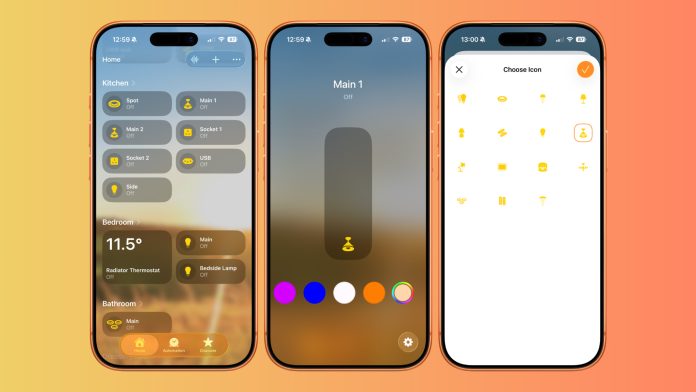
In this guide, we are looking at how to change accessory icons in the Home app for Apple Home. While it is a small detail, using the correct icon makes accessories easier to recognise at a glance, especially in rooms with lots of devices.
Which accessory icons can be changed in Apple Home
When you add a new accessory to Apple Home, the Home app assigns a default icon based on the device type. In many cases, this icon can be changed to better reflect what the accessory actually controls.
Not all accessories support multiple icons. Sensors, cameras, Robot vacuums and some specialised devices are limited to a single icon. Lights, power outlets, fans, Locks and blinds usually offer more flexibility, allowing you to choose an icon that better matches the real world device.
Icon options are still fairly limited, and while this has improved over time, there is room for expansion in future versions of Apple Home.
How to change icons for outlets and fans in the Home app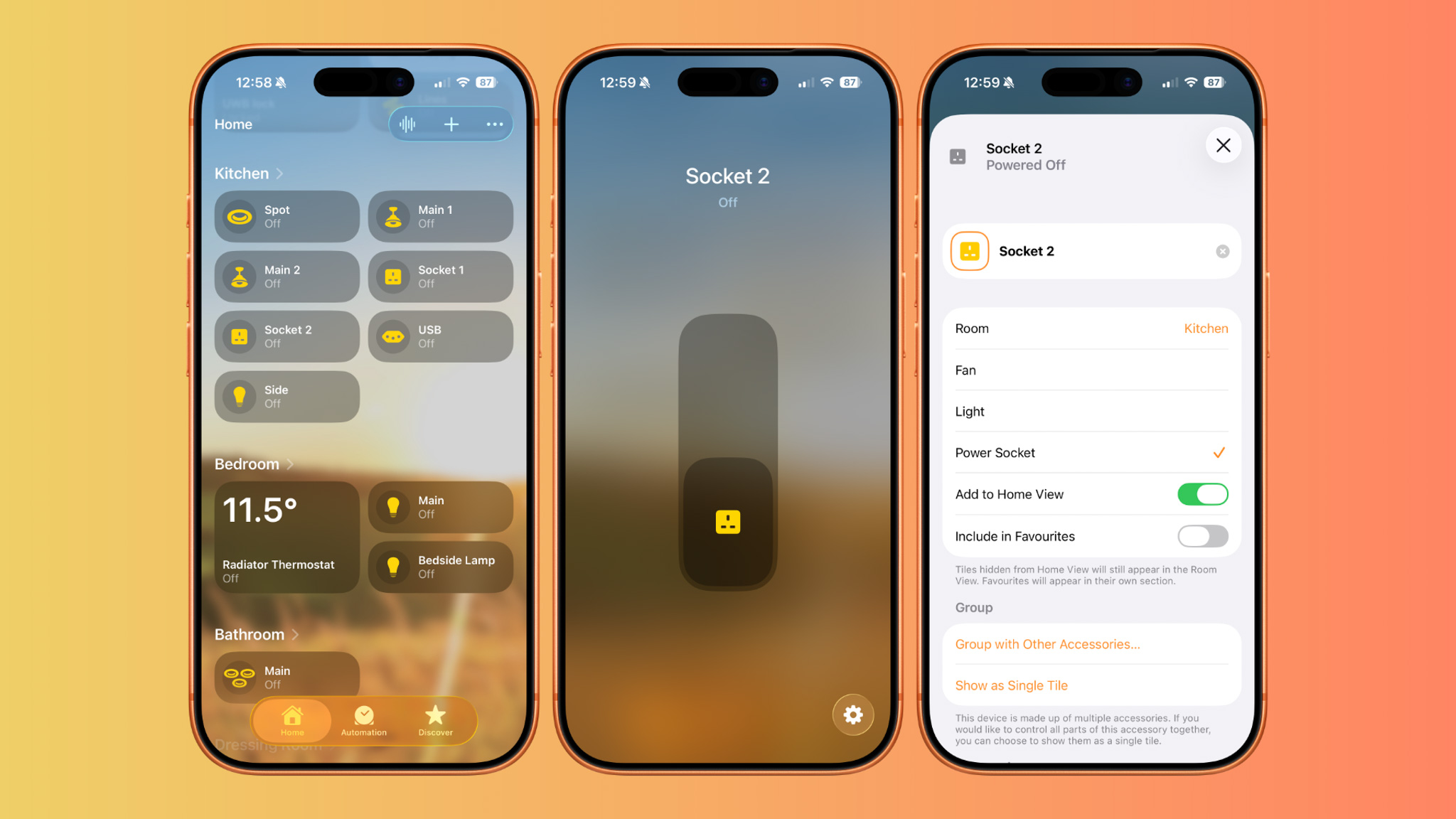
Changing the icon for outlets and fan accessories is quick and easy.
- Open the Home app and navigate to the accessory you want to update.
- Press and hold on the accessory, then tap the settings icon.
- Tap Type and choose the most appropriate option, such as Power Outlet, Fan, or Light.
- Tap Done to save the change.
This is especially useful for power outlets that control specific appliances or fans, as it makes their purpose immediately clear in the Home app.
How to change icons for lights, blinds and smart locks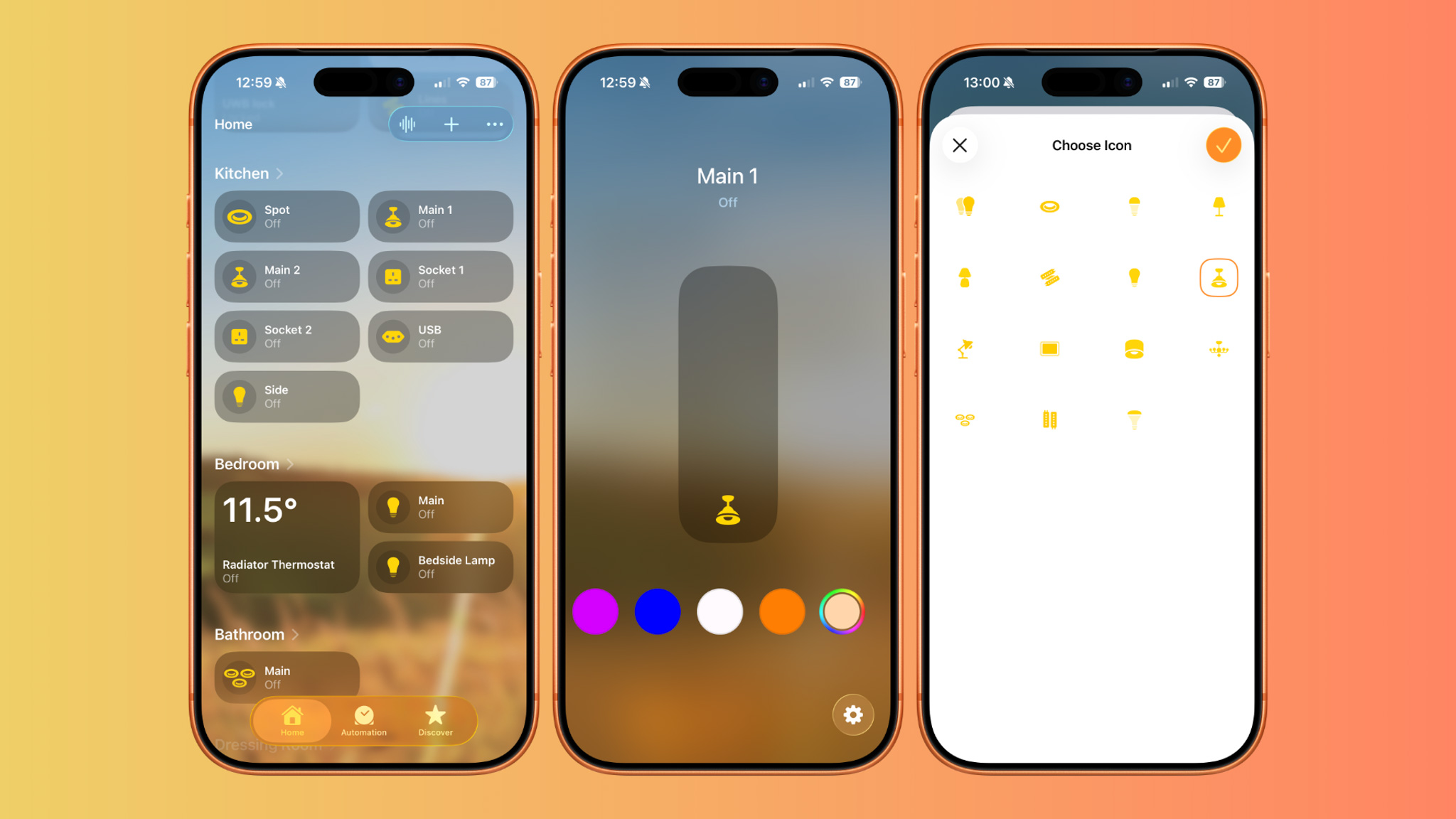
Lights and blinds allow direct icon selection rather than changing the accessory type.
- Open the Home app and press and hold on the accessory.
- Tap the settings icon to open the accessory settings.
- Tap the current icon shown at the top of the screen.
- Choose a new icon from the available options and tap Done.
This works well for distinguishing between different types of lighting or identifying blinds and shades more clearly within a room.
Why icon customisation matters
While icon changes do not affect how accessories function, they make a big difference to usability. Clear icons reduce confusion, speed up control, and make larger Apple Home setups feel cleaner and more intentional.
It would be great to see Apple expand icon options further, especially for televisions and different light styles, or eventually allow custom icons. For now, making use of the available options is an easy way to improve the Home app experience.
For more Apple Home how to guides check out this page.