Getting started with Apple Home can feel overwhelming at first, but adding your first smart accessory is actually one of the simplest parts of the setup. Whether it’s a light, plug, lock, or thermostat, Apple Home is designed to make onboarding quick and consistent across devices.
One of the biggest changes to Apple Home in recent years is that you are no longer limited to accessories made specifically for HomeKit. Apple Home now supports both Apple Home native accessories and Matter compatible devices, meaning a much wider range of smart home products can be added directly to the Home app.
Whether a device is built for Apple Home or supports Matter, the setup process is designed to feel the same. The goal is simple onboarding, consistent controls, and reliable automation across your smart home.
If you want a complete beginners guide to setting up your first Apple Home, then checkout this guide.
Set up Apple Home accessories
To get your Apple Home smart home started, you can add lights, locks, thermostats, cameras, and other compatible accessories, including Matter devices. Before you begin, make sure the following is in place.
Your accessory is powered on and nearby.
Check the manufacturer’s instructions to see whether additional hardware such as a hub or bridge is required.
This guide assumes the accessory has already been set up in its companion app and connected to your home network.
How to add a smart home accessory to Apple Home
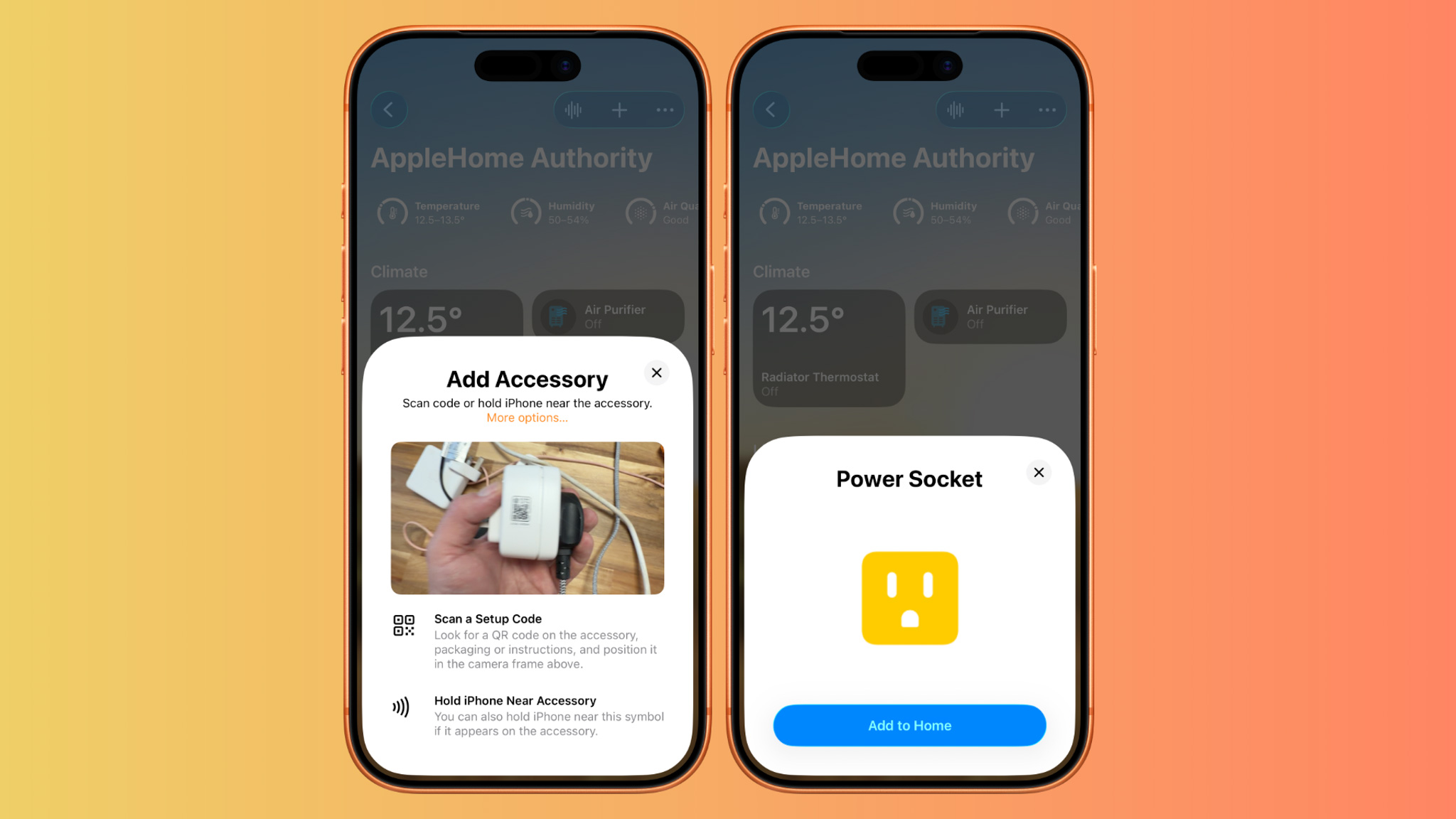
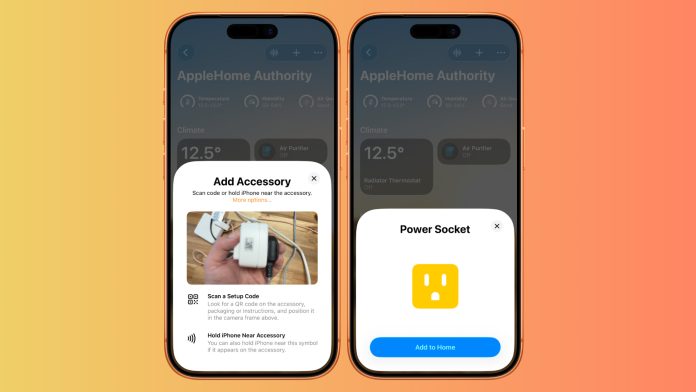
1.Open the Home app on your iPhone or iPad.
2.Tap the plus icon in the top right corner.
3.Select Add Accessory.
5.Use your device camera to scan HomeKit or Matter setup code, or the QR code found on the accessory or its documentation. If you cannot scan a code, you can enter it manually.
6.Assign details to the accessory, including
• the room it is located in
• the accessory name
• the icon used in the Home app
7.Tap Next, then tap Done.
That’s it. Your smart accessory is now connected and ready to use in Apple Home.
If you want more Apple Home tutorials then check out this page for all the guides to Apple Home and how to get the most of it.